

All our products are set to download with one click to whatever folder you’ve pre-specified. On Macs, this is usually your Downloads folder, your Desktop, or your Documents folder.
We also recommend that you do a search for the Flowdream name on your computer after downloading it.
How to Download Your Purchases
After you make a purchase, you’ll be directed to Checkout Success page with a choice of download options: “Download to your Desktop Computer” or “Download to a mobile device (iOS or Android)”.
You will also receive an email with links to download your products.
If you have misplaced the email, or are trying to access your files anytime after your purchase, then you can do the following:
TO DOWNLOAD TO DESKTOP OR LAPTOP
- Go to Flowdreaming.com
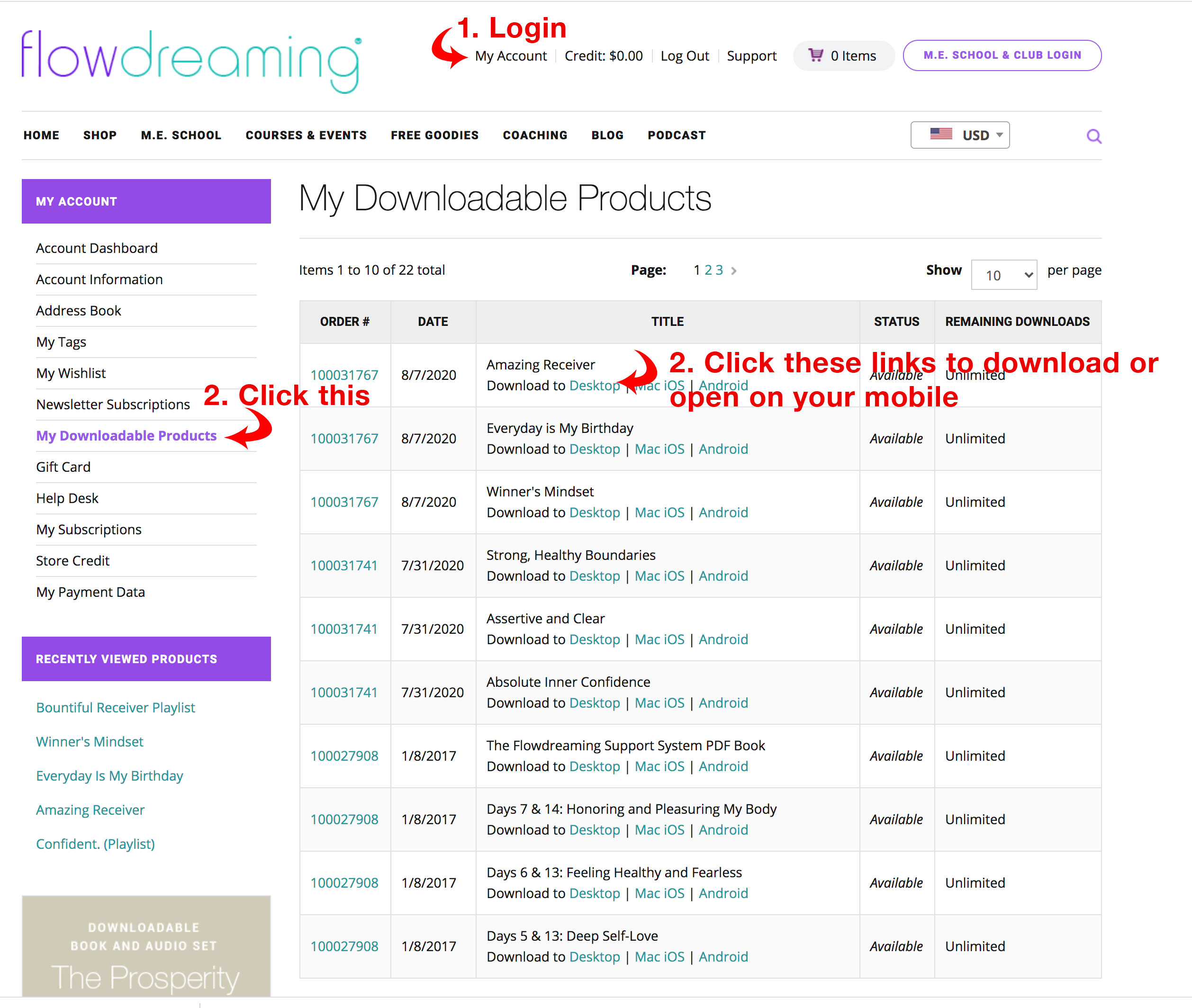
- Click MY ACCOUNT in the upper right corner of the screen to log in.
- Once logged in, click MY ACCOUNT again to see your Account dashboard.
- Inside the lefthand navigation, click on MY DOWNLOADABLE PRODUCTS. Here you’ll see listed every Flowdream or file you’ve purchased, with a download link (“DOWNLOAD TO DESKTOP”). You also have the option of clicking the mobile app icons to open the Flowdreaming mobile app, where you will see your downloads pre-loaded in your app.
All our products are set to download with one click to whatever folder you’ve pre-specified.Macs: this is usually your Downloads folder, your Desktop, or your Documents folder.
PCs: Download Manager keeps track of pictures, documents, and other files you download from the web. Files you’ve downloaded are automatically saved in the Downloads folder. This folder is usually located on the drive where Windows is installed (for example, C:\users\your name\downloads). You can always move downloads from the Downloads folder to other places on your PC.
PCs: If you’re still unable to locate your Downloads folder, do the following:
- Open Internet Explorer, select the Tools button, and then select View downloads.
- In the View Downloads dialog box, select Options in the lower left hand corner.
- Choose a different default download location by selecting Browse, and then select OK when you’re done.
If you can’t find your audios after downloading, do a computer search for the Flowdream name to find out where it downloaded to.
How to Listen to Your Purchases on a Mobile Phone
TO DOWNLOAD TO AN IPHONE OR IPAD
1. Download the mobile Flowdreaming app here.
2. Register as a New User (choose “Sign Up”). **Please use the same email to Sign Up in the app that you registered with at flowdreaming.com***
3. Once the app opens, tap “My Files” at the bottom of the screen. Your purchases will begin to download. Expect the app to appear laggy or frozen for a few minutes while it completes the sync and download.
How to Find Old Orders to Download Again
You can easily re-download your mp3s from inside your customer account. Follow the instructions for “How to Download to a Desktop or Laptop” above.
In some cases, some very old Flowdreams (from years ago) may no longer be available to download, due to upgrades we’ve made to our web shop. If that’s the case, please start a Ticket. Your purchases will be available to download for a minimum of 90 days. We can’t promise access to downloadable purchases past 90 days, since our products often change or upgrade and past purchases are no longer supported.
When an Audio Stops Playing
When an audio track is cut off or stops partway through and begins playing again from the beginning, it means that the file has not fully downloaded. The solution is to return to your Account page and download the file again. This problem usually occurs where Internet access is slow or a wifi download becomes interrupted. The download “times out” and your files stop downloading.
Refunds
Because all purchases are instant downloads, we can’t offer refunds. Similar to music downloads, all purchases are final. We urge you to listen to the track samples to see if the material resonates with you before buying.
Exceptions: We’d be glad to help you with a refund or exchange for any duplicate track purchases you may have made at Flowdreaming.com. We can issue a return or store credit (your choice). Just email us or use our chat box to request a refund. Please indicate the duplicate audio name and order number, if possible.
Email: support@flowdreaming.com
Password Reset / Updating Your Data
Sometimes our Password Reset emails are captured by anti spam devices. Please check your Spam and Junk Mail folders first.
If you’re still unable to retrieve your password reset email, please email support@flowdreaming.com or leave us a message here describing the problem so we can help you.
Note that the Flowdreaming shop, the Membership site, and the app do not share logins. This means you need to make an account in each one. You’re welcome to use the same email and password for all three to keep it simple!
To change your Email, User Name, or Password:
Login to “MY ACCOUNT” in the upper right of the website, or in the mobile navigation panel.
You may update your data there.